
Support
Imposter Game - Imposter Me!
Browse the guide below to find answers. If you can't find what you need, get in touch and we'll help you out.
Contact support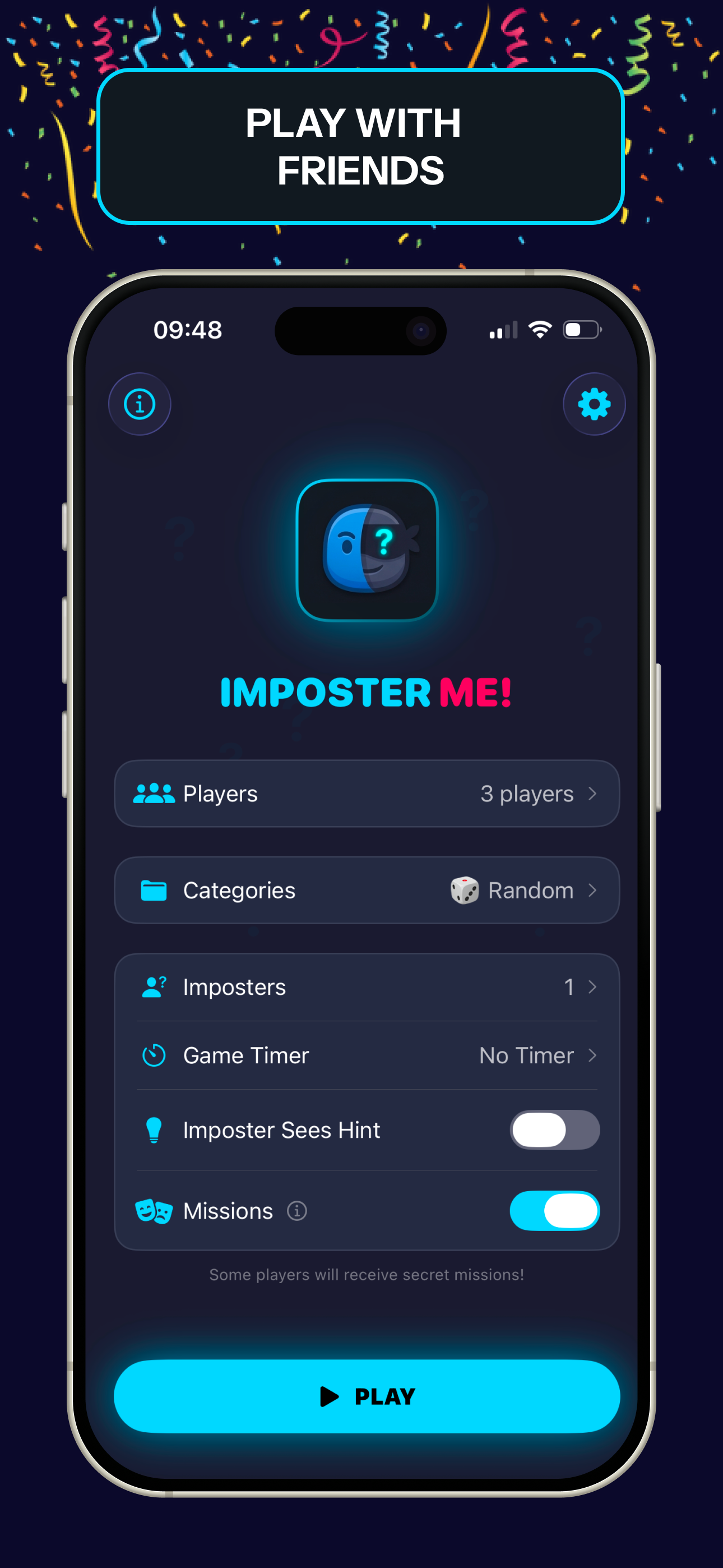
Game Configuration Screen
Use this screen to configure how your game will be played. Modify these settings to customize your game.
- 1Tap 'Players' to adjust the number of people who will play.
- 2Tap 'Categories' to select the topic used for the secret words.
- 3Tap 'Imposters' to choose how many players will be imposters.
- 4Tap 'Game Timer' to set a time limit for each round.
- 5Toggle 'Missions' on to enable secret missions for players to complete.
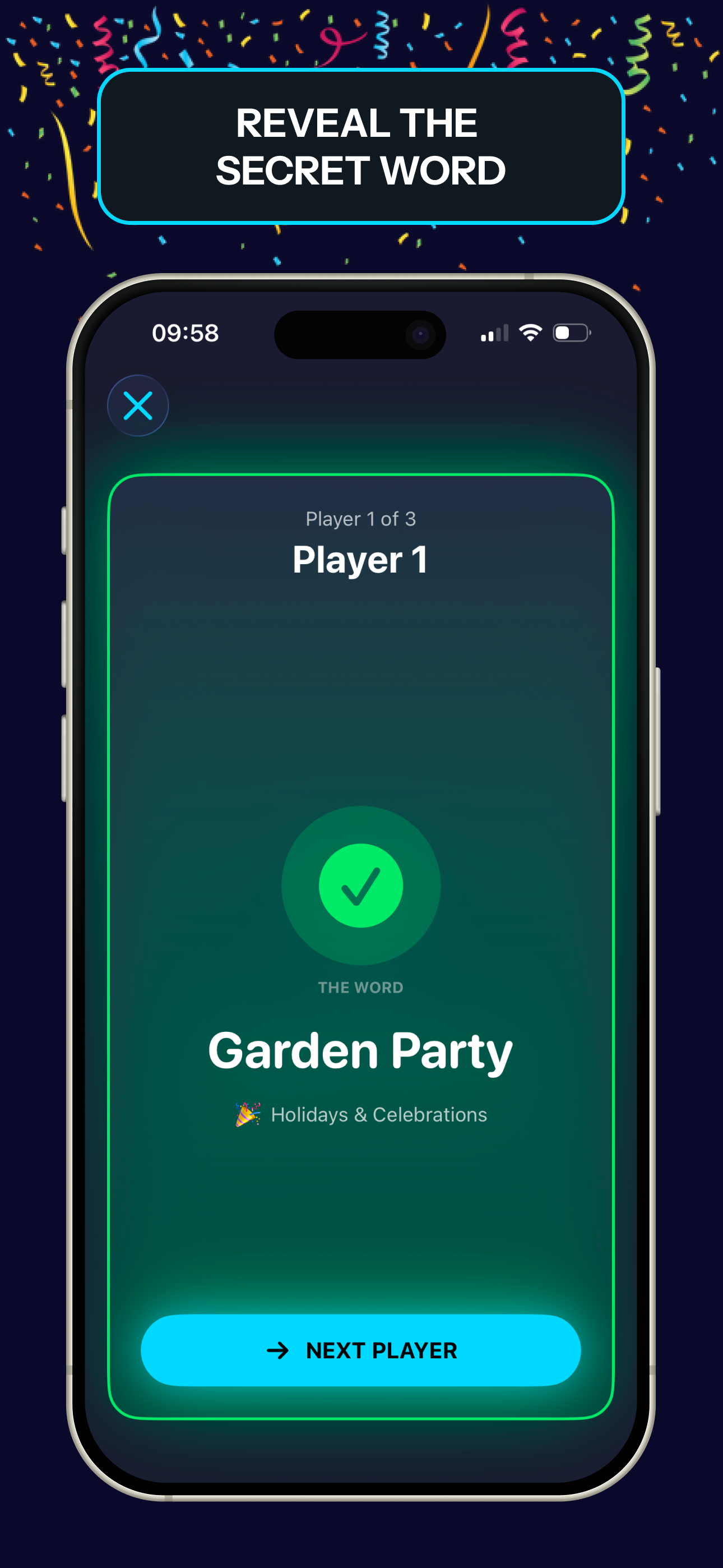
Gameplay Round Screen
This screen displays the secret word for the current round of gameplay. Innocents use the secret word to answer questions, while the Imposter must guess the word.
- 1Tap the X icon in the top left corner to exit the current game.
- 2The 'Player' field indicates whose turn it is to answer questions.
- 3After viewing the secret word, tap the 'Next Player' button to pass the device to the next player.
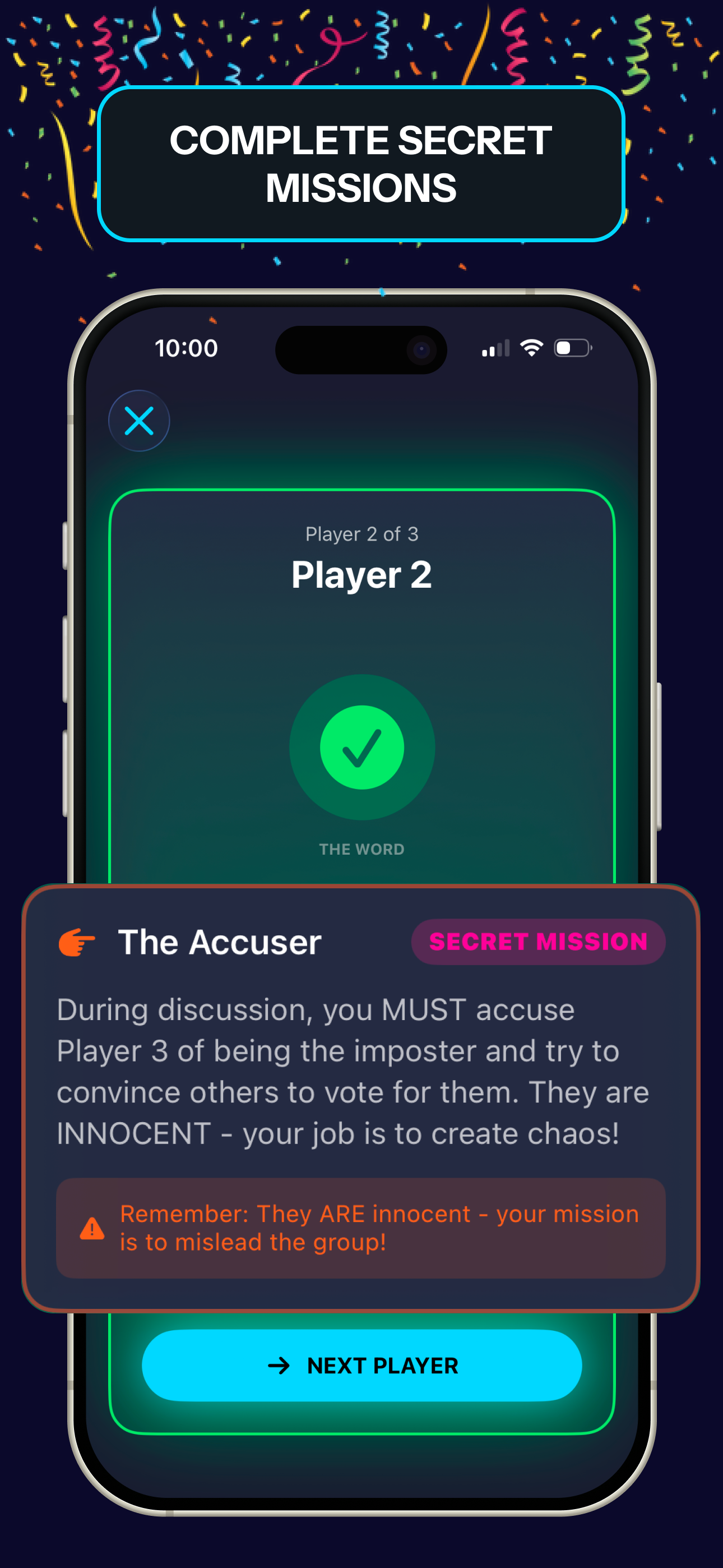
Secret Mission Reveal Screen
This screen reveals your secret mission for the game. Complete the mission without revealing your secret to the other players.
- 1Read your secret mission carefully so you understand your objective.
- 2Tap the 'Next Player' button to pass the phone to the next player.
- 3Note the 'Secret Mission' badge which designates that you are to carry out a special task.
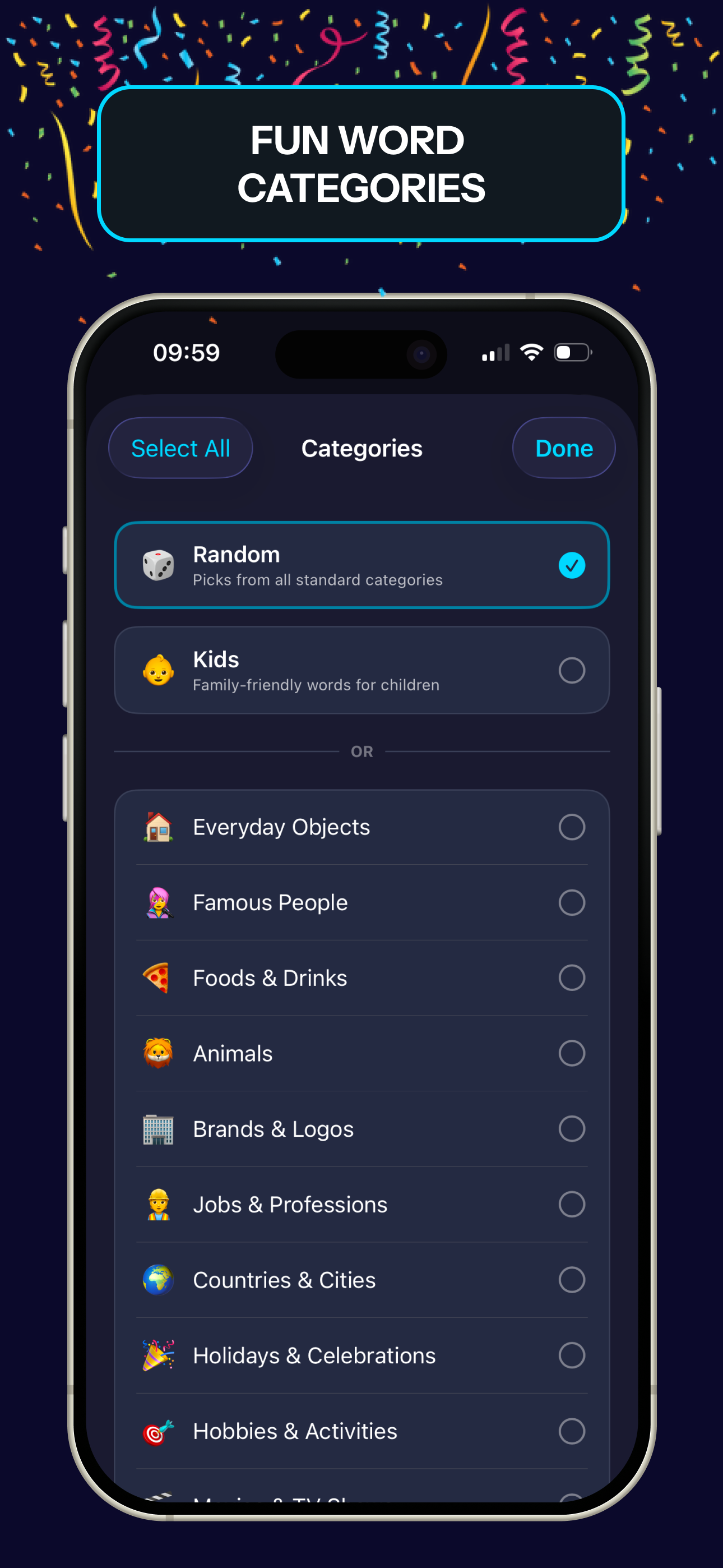
Category Selection Screen
This screen lets you pick word categories for your game. Choose categories that fit the players, or select Random for a mix.
- 1Tap 'Select All' to include all categories.
- 2Choose 'Random' to include all standard categories.
- 3Select individual categories for more specific word lists.
- 4Tap 'Done' to save your selection and start playing.
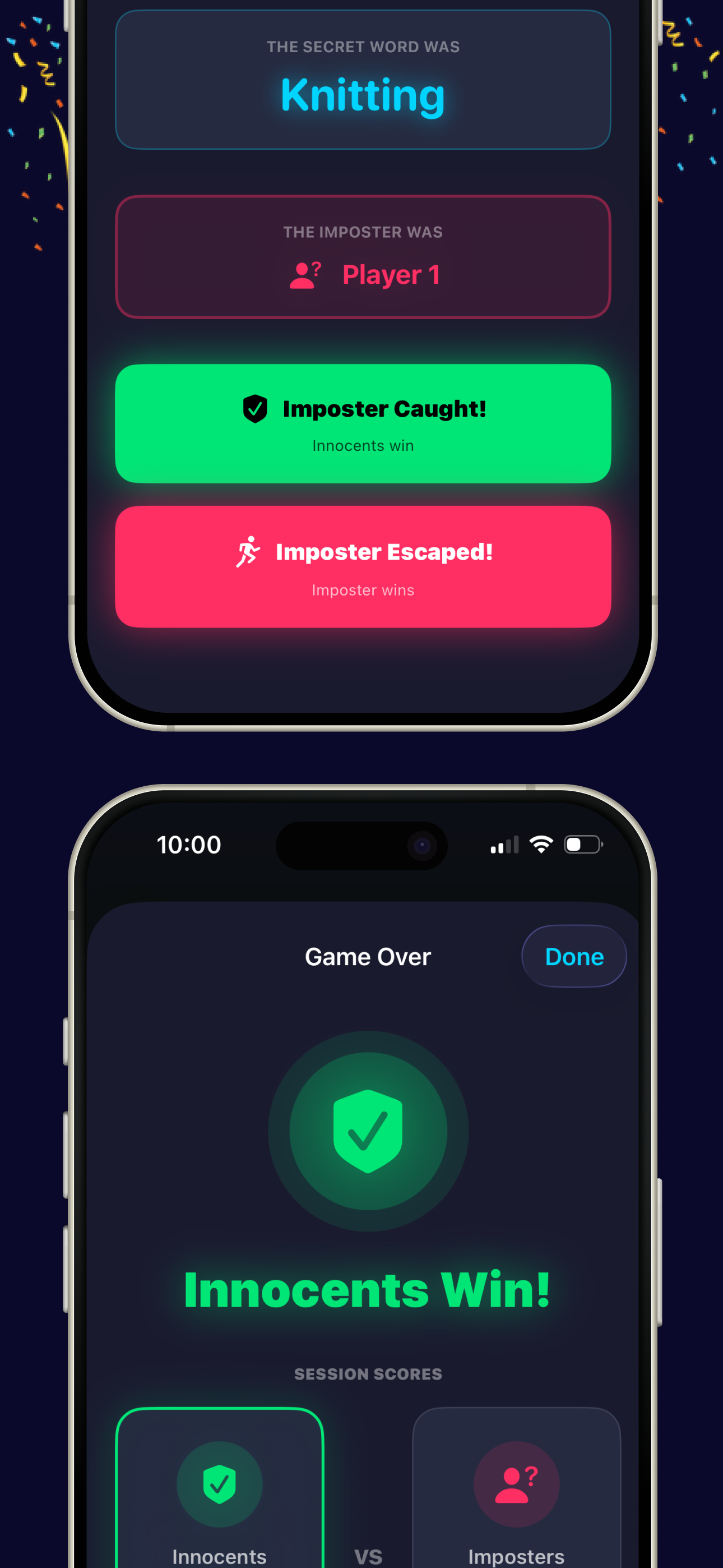
Game Results Summary Screen
This screen displays the outcome of the game round, identifying whether the innocents or imposters won. You'll see a breakdown of the session scores on this screen.
- 1Tap the 'Done' button to exit the game results and return to the main menu.
- 2Review the visual indicator to quickly see if the innocents were successful in their mission.
- 3Examine the 'Session Scores' section to view the cumulative scores for both the innocents and imposters teams.
- 4If you are an imposter, review the 'The Imposter Was' section to see which player was caught out.
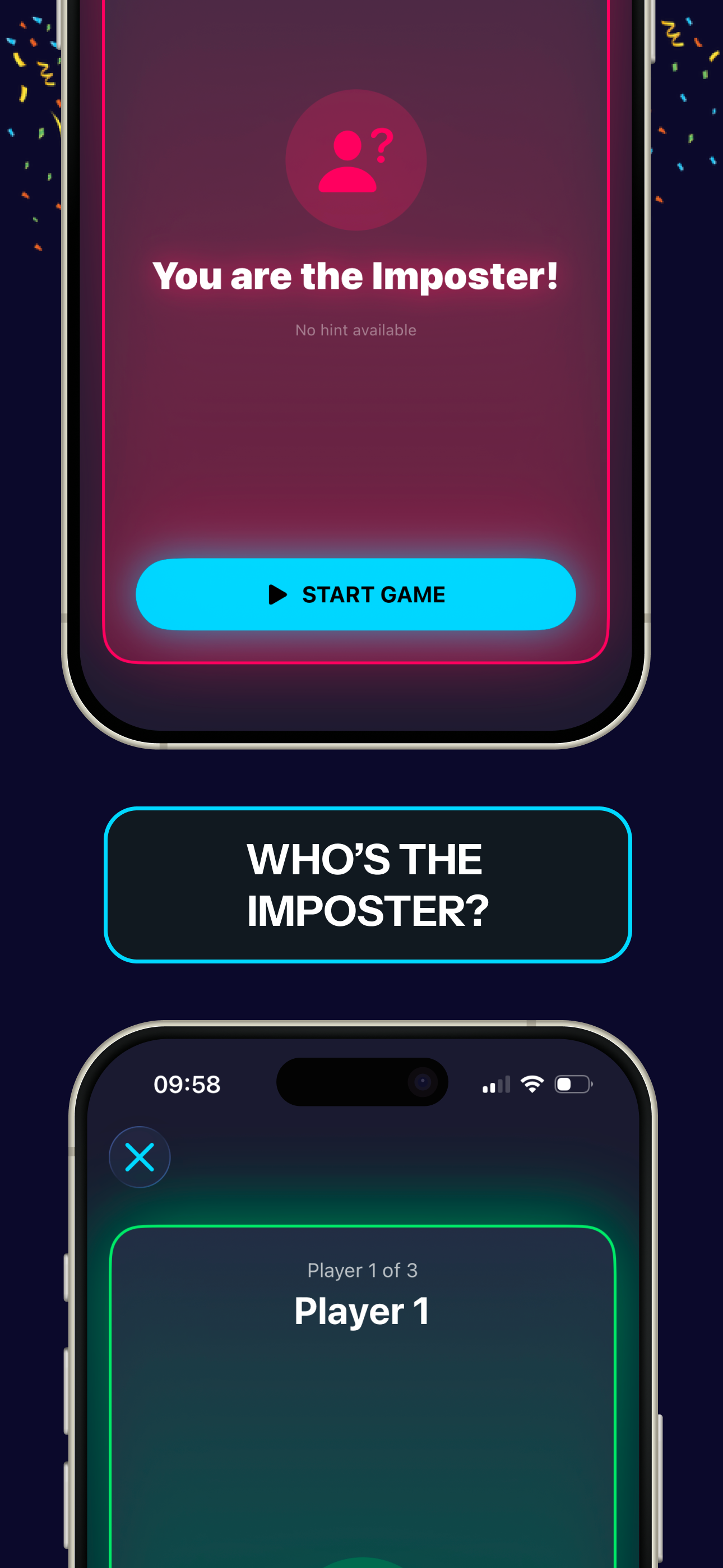
Gameplay Initialization Screens
These screens appear when starting a new game, informing you of your role and providing options to begin playing with others.
- 1The 'You are the Imposter!' screen indicates that you have been selected as the imposter for this round.
- 2Tap the 'Start Game' button to initiate the game once all players have joined.
- 3The screen with 'Player 1 of 3' is where you will see other players as they join the room.
- 4Tap the 'X' icon to leave the current game lobby.